Table of Contents
ToggleGoogle AI Studio is widely used by developers, researchers, and content creators in the USA, but many users suddenly face the “Failed to Generate Content – Permission Denied” error. The problem becomes more difficult to understand because your account functioned correctly until that point. The error occurs because users either lack necessary permissions or their Gemini API access remains disabled or they have reached their billing and quota limitations or their VPN settings create location problems. The Google AI Studio guide helps users of Gemini models who experience request blockages by providing them with step-by-step instructions to identify the root cause of their issues and resolve them without needing technical expertise.
This step-by-step guide is brought to you by Digi Mathur Reviews, a trusted source for AI tools, tutorials, and tech insights in the USA.
The Google AI Studio “Failed to Generate Content Permission Denied” error occurs because users lack the required account permissions and the Gemini API remains disabled and their active usage has reached quota limits and their VPN connection creates interference. Fix it by verifying Google Cloud access, enabling billing, checking API quotas, and using a US-based IP address..
1. What Is Google AI Studio Permission Denied Error?
The Google AI Studio “Failed to Generate Content – Permission Denied” error appears when your system attempts to create content but access permissions and system settings prevent you from doing so. Users see this error while trying to generate text, images, or other content using Gemini models. The error does not show common server problems because it specifically indicates that a user lacks the necessary permissions to access a particular resource.
Common Error Messages Users See
- Could not create content: Permission denied.”
- “Access to API on Gemini is limited.”
- “Quota exceeded or account billing issue.”
- “Your current account doesn’t have access to this resource.”
These error messagesusually appear in the output panel of Google AI Studio’s console, notebook or API dashboard and are typically signposted with a red error icon.
2. Why Google AI Studio Shows “Failed to Generate Content
In understanding why this occurs, one can perhaps arrive reliably to its cure. The following are its principals:
Account Permission Issues
You need to have proper permissions for your Google account to access AI Studio features. This usually happens in:
- G Suite / Workspace accounts: Admins may restrict access to certain APIs.
- New accounts: Sometimes new accounts need verification or setup for API access.
API Quota & Billing Problems
Google AI Studio restricts application programming interface access to each project. The system displays permission denied errors when your quota exceeds its limit and you have not activated billing. USA users often face this when using Gemini API heavily for content generation in apps or SaaS projects.
Workspace or Organization Restrictions
API access gets blocked by organization policies which exist in both corporate and educational Google accounts. You should verify whether your account exists under a managed domain.
VPN or IP Location Conflict (USA Users)
Google will deny access to your requests when your IP address does not match your Google account region and you use a VPN service. USA users frequently face this when using VPNs for privacy or cross-region testing.
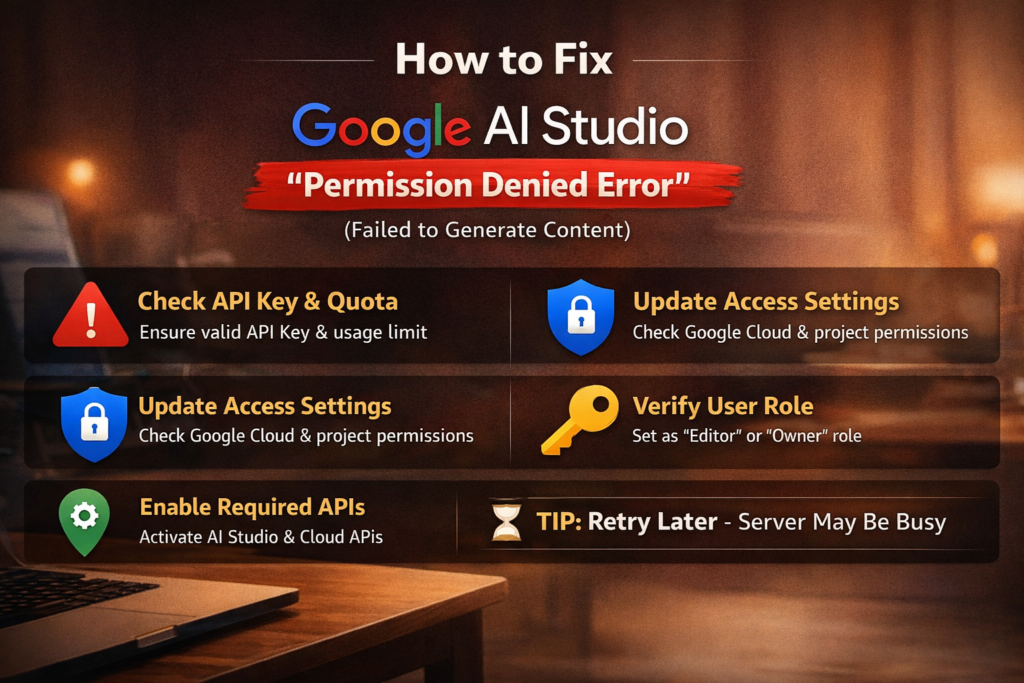
3. How to Fix Google AI Studio Permission Denied Error
The error can be fixed through these step-by-step solutions
Check Google Account Access
- You need to verify your login through the appropriate Google account which you should use.
- You need to confirm your account access to AI Studio.
- The user must obtain admin permission when they use an educational or corporate account.
Enable Gemini API in Google Cloud Console
- Access Google Cloud Console.
- Choose an existing project or initiate a new project.
- Go to APIs & Services section and select Library option.
- Find Gemini API through search and proceed to enable it.
- Create API keys when necessary and store them in a safe location.
Verify Billing & Quota Limits
- Projects should only be developed after developers have activated billing for their projects.
- The usage dashboard should be checked to verify that no quotas have been exceeded.
- When all quotas reach their maximum capacity, users must either request additional quotas or select a higher service plan.
Disable VPN or Switch to US IP
- You must disconnect the VPN or select a US-based IP address to access the content.
- Users need to clear their browser cache before they attempt to log in to their account again.
- The solution often solves problems that prevent users from accessing locations they should be allowed to access.
Clear Browser Cache or Use Incognito Mode
- Caches expire since a cache is no longer fresh.
- To refresh the Google AI Studio browser page, use the enforcement referred to in question 1.
4. Google AI Studio Fix for Developers (USA Guide)
In the world of technology, professional developers and specialists face advanced intricacies such as integration through an API or scaling automation.
Create a New Project in Google Cloud
- The simplest solution to our problem requires us to create a new project on Google Cloud which provides us with new API access rights.
- The solution enables us to access system resources without any limitations which were imposed by the previous projects.
Regenerate API Keys
- The system will not allow entry when users attempt to access the system with expired or compromised API keys.
- You need to go to API & Services section and create a new key through the Credentials menu.
- You must delete existing keys from your scripts and applications.
Check IAM Roles & Permissions
- Access IAM and Admin section through Google Cloud Console.
- Your user needs both roles/editor and roles/AI Platform Admin permissions to function correctly.
- API requests will not succeed without correct IAM roles despite proper billing and quota settings.
5. Is Google AI Studio Down or Blocked in the USA?
Most permission errors in Google AI Studio occur because of account settings and API permissions and billing problems but sometimes users, who want to know whether the service is down, check for outages that affect the USA. Google AI systems experience temporary downtime because of server maintenance and unexpected outages and system updates, which occur only in rare cases. Users will receive the “Failed to Generate Content” error message, which they will see during these periods even though their account and API access and quotas have been set up properly.
USA users can check service status through the Google Workspace Status Dashboard. The dashboard provides live updates about the operational status of Google services which includes AI Studio and its associated APIs. Users should wait for service restoration when the dashboard shows an outage or maintenance alert. Google resolves problems rapidly because its services experience brief interruptions.
The system experiences two types of problems which include server problems and restricted access through regional and network blockages that occur less frequently. USA-based corporate networks and educational institutions implement firewalls and security protocols which prevent their users from accessing cloud-based AI services. VPN usage with non-US IP addresses will sometimes activate Google security systems which result in access denial. The system will display a permission denied message to users who have proper access rights because of this issue.
To avoid regional or network-related blocks:
- You must set your Google account region to the United States.
- To access Google AI Studio users must either disconnect their VPNs or use an IP address from the United States.
- The users should consult their organization’s IT team to determine whether network restrictions are hindering their access.
6. Final Thoughts: Avoid Permission Denied Errors in Google AI Studio
- You should access the system with an authenticated Google account which contains essential access rights.
- The Gemini API needs activation while the billing system must remain operational.
- API quotas need to undergo monitoring on a regular basis. AI Studio users in the USA should not use VPNs or unstable IP addresses for their work.
- Developers need to conduct regular IAM role assessments while they should create new API keys whenever necessary.
United States readers could avoid the “Failed to Generate Content – Permission Denied” error in no time. AI works seamlessly afterward.
FAQ
1. Why does Google AI Studio throw a Permission Denied error even when using a paid account?
A paid account would still need API permission, enabled Gemini API, and a sufficient quota. It might also be the corporate policies that have blocked the access.
2. Can VPNs cause Google AI Studio errors?
Yes, the VPN could cause conflicts in location. Most likely this error would be solved by using a U.S. IP address.
3. How to verify if my Gemini API quota is full?
Navigate to the Google Cloud Console > API’s & Services > Dashboard, select the Gemini API, and monitor usage statistics.
4. Will creating a new project fix permission errors?
The answer to this question is often yes because A new project creates new permissions because A new project creates new permissions and access limits which eliminate all access restrictions that existed in previous projects.
Top Free AI Tools Americans Are Using in 2026 to Make Money Online
Top 20 Generative AI Tools for Americans in 2026